 LotsTeam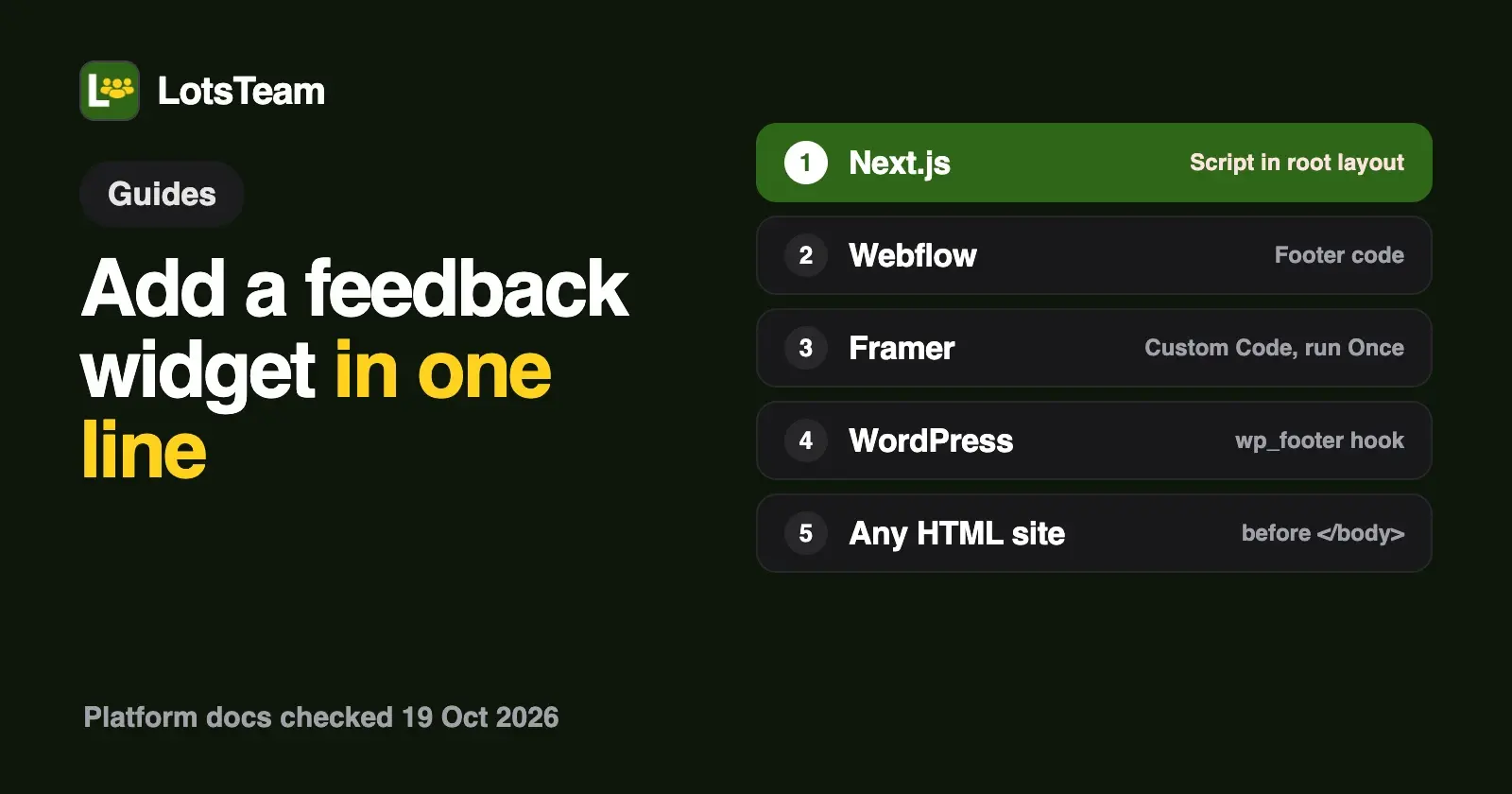
To add a feedback widget to your site, copy the one-line LotsTeam script from your project's widget settings and paste it once, site-wide, before the closing </body> tag. In Next.js that's a <Script> in your root layout, in Webflow the Footer code, in Framer a Custom Code snippet set to run once, and in WordPress the wp_footer hook.
A floating button then appears on every page. Visitors can leave feedback, send you a message or open your changelog, and everything lands in one LotsTeam project that you can work from ChatGPT, Claude or another AI agent. In LotsTeam a "post" means a piece of product feedback: a feature request, a bug report or an idea from one of your users, not a social media post.
Below are the exact steps for each platform, what to check afterwards, and the prompt I use to have my agent go through what the widget collected. Platform steps are from each vendor's own docs, checked on 19 October 2026.
What the widget does
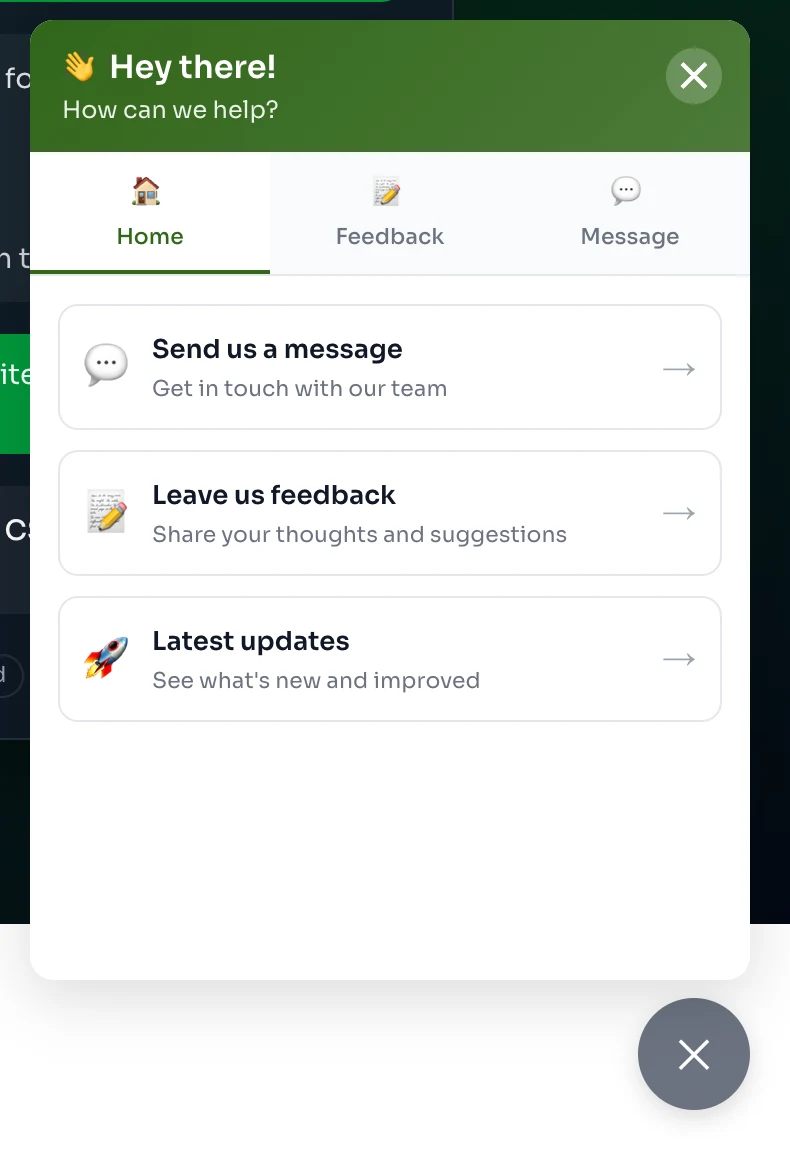
That's the widget running on lots.team itself, opened from the button in the corner. It has three options:
- Leave us feedback. The visitor picks a category (bug report, feature request, improvement or other), writes a title and the details, and leaves a name and email. It arrives as a post in your project, tagged as coming from the widget, with the page it was sent from.
- Send us a message. A free-text message that lands in the project's support inbox, where you (or your agent, on your instruction) can reply by email.
- Latest updates. Opens your public changelog, so people can see what shipped.
Keep the email field on. When you ship something and publish a changelog entry linked to the task, LotsTeam can email the people whose posts are linked to it. A post without an email can't be told. I walk through that in how to publish a changelog and notify the people who asked.
Step 1: get your snippet
- In the LotsTeam dashboard, open your project and click Widget in the sidebar (the page is titled Posts widget).
- On Setup, leave Enable widget on your website ticked and choose whether to show the feedback form, the contact form or both.
- On Appearance, set the colour, button text, icon, position (any corner) and an optional welcome message. On Forms, choose whether name and email are collected and required, and edit the placeholders and the success message.
- Click Create Widget (or Save Changes), then open Install and copy the code.
It looks like this, with your own project ID:
<!-- Lots.Team Widget -->
<script src="https://lots.team/widget.js"
  data-project="YOUR_PROJECT_ID" async>
</script>
That's the whole install. The script reads data-project, loads your settings and draws the button. There's no package to install, no API key in the page, and no build step. Changes you make later in the dashboard (colour, text, which forms show) reach your site without touching the code again; the dashboard notes they can take 5 to 10 minutes to appear because browsers and CDNs cache the script.
Add it once per page, site-wide. Each time the script runs it draws a button, so loading it twice on one page gives you two buttons. Every platform below has a "whole site" place for scripts; use that rather than pasting it into individual pages.
Next.js
Next.js recommends its Script component for third-party scripts, and its docs say extra attributes such as custom data-* attributes are forwarded to the final <script> tag. That's what carries your project ID.
App Router. Put it in your root layout, app/layout.tsx, so it loads on every route:
import Script from "next/script";

export default function RootLayout({ children }: { children: React.ReactNode }) {
  return (
    <html lang="en">
      <body>
        {children}
        <Script
          src="https://lots.team/widget.js"
          data-project="YOUR_PROJECT_ID"
          strategy="afterInteractive"
        />
      </body>
    </html>
  );
}
Pages Router. Put the same <Script> in pages/_app.tsx, next to <Component {...pageProps} />.
afterInteractive is the default strategy: the script loads after the page hydrates, so it never delays your own code. Use lazyOnload instead if you'd rather it wait for browser idle time. Because the root layout stays mounted across client-side navigation, the script runs once and the button stays put as people move between pages.
A plain <script src="https://lots.team/widget.js" data-project="..." async /> in the root layout's <body> works too; that's how lots.team itself loads it.
Webflow
- Open Site settings, then the Custom code tab.
- Paste the snippet into Footer code. Webflow places it before the closing
</body>tag on every page. - Click Save changes, then publish the site.
Webflow's help page says custom code in Site settings needs a Core, Growth, Agency or Freelancer Workspace, or an active Site plan, and that its effects show in preview but go live only when the site is published. Each code section holds up to 50,000 characters, which a one-line script won't trouble. Webflow also asks you not to include <html>, <head> or <body> tags in custom code; the snippet has none.
If you only want the widget on some pages, Webflow's Page settings have a Before tag section per page. Use one place or the other, not both, or a page will get two buttons.
Framer
- Open Project Settings and select the Custom Code tab.
- Click Add Script (or the + icon if you already have code there) and name it "LotsTeam widget".
- Choose the placement end of
<body>. - Leave it on all pages, or pick specific pages from the list.
- Set how often it runs to Once, not Run on every page visit.
- Publish, and test on the live site.
Step 5 matters. Framer's help explains that "Once" adds and executes the code a single time, while "Run on every page visit" executes it on each visit. The widget script draws a new button every time it runs, so a snippet that runs again on each page visit can leave you with more than one. Framer also doesn't run custom code on the canvas preview; its Academy lesson says to publish and open the live page to test.
WordPress
Self-hosted WordPress (WordPress.org). WordPress has no built-in box for footer scripts, so use the wp_footer hook, which "prints scripts or data before the closing body tag on the front end". Add this to your child theme's functions.php, or as a snippet in a code-snippets plugin so it survives theme updates:
add_action( 'wp_footer', function () {
    echo '<script src="https://lots.team/widget.js" data-project="YOUR_PROJECT_ID" async></script>';
} );
I echo the tag directly instead of using wp_enqueue_script because the widget needs the data-project attribute on its own <script> tag, and echoing it keeps that exact. Most themes call wp_footer(); if the button doesn't show, check that yours does.
WordPress.com. It depends on your plan. WordPress.com's support page says JavaScript can be used on sites with a plugin-enabled plan and hosting features activated; before that, the same code limits as free sites apply. Its install-a-plugin page says plugins are available on all paid plans (Personal, Premium, Business and Commerce). Once hosting features are on, add the same wp_footer snippet with a code-snippets plugin, as above.
Any other site
For a static site or another builder, paste the snippet once in the shared template, just before </body>. Anywhere that lets you add a site-wide footer script will do.
Check that it works
- Open the live site (not an editor preview) and look for the button in the corner you chose.
- Open the browser console. A working install logs
[Lots.Team Widget] Initialized successfully. - If the console says
[Lots.Team Widget] Widget is disabled, tick Enable widget on your website in the dashboard and save. - If it says the configuration failed to load, check the project ID, and check that the project isn't set to internal: an internal project turns off both the public portal and the widget (Project settings, Details, Visibility).
- Send yourself a test: one piece of feedback and one message. The feedback shows up under Posts, the message under Messages (the support inbox).
- Changed a colour or the button text and don't see it? Give it 5 to 10 minutes or clear the browser cache.
The widget has its own spam controls: a hidden honeypot field, per-visitor and per-project rate limits, and a cap of three submissions a minute from the same email address. There's no CAPTCHA, so real visitors aren't asked to solve puzzles.
Then let your agent go through what comes in
The widget is set up in the dashboard; the LotsTeam MCP server doesn't change widget settings. What the agent does is the part after: reading what people sent, grouping duplicates, opening tasks and linking each request to its task. Each widget post carries source: "widget" and the page URL in its metadata, so the agent can tell you where on your site people were when they wrote.
Connect LotsTeam to your agent with the steps at lots.team/skill.md (MCP server https://api.lots.team/mcp, sign in with your LotsTeam email, no key pasted into the chat). Then:
In my LotsTeam project "<your project>":

1. List the posts from the last 7 days that came from the widget
   (metadata.source is "widget"). For each, show the title, category,
   the page URL it was sent from and whether it has an email.
2. Group the ones that ask for the same thing. For each group, say if
   a task already covers it.
3. For groups with no task, propose a task title and priority. Don't
   create anything yet; show me the list first.
4. List new support messages too, but don't reply to any of them.
When I say go, it creates the tasks with create_task and links each post with link_post_to_task. The agent acts with my permissions, and a reply to a support message is only sent when I tell it to, because a sent reply emails the customer. The full version of this run, with real tool output, is in how to triage customer feedback with Claude or ChatGPT, and how to prioritize feature requests with an AI agent picks up from there.
What it costs
The widget is part of every LotsTeam project; there's no separate widget fee. You pay per project: $9 a project a month pay as you go from credits, or plans that cover 3, 10 or 30 projects for $24, $69 or $159 a month (yearly is 10x the monthly price). Team members and organisations are unlimited. New accounts get 10,000 free credits, valid 90 days, no card, and the Pro and Business plans include LotsNotes Pro. Details on lots.team/pricing and in LotsTeam pricing explained.
Common questions
How do I add a feedback widget to my website?
Copy the one-line script from your LotsTeam project's widget settings (Widget in the sidebar, then the Install tab) and paste it once, site-wide, before the closing body tag. In Next.js use the Script component in the root layout, in Webflow the Footer code in Site settings, in Framer a Custom Code snippet at the end of body set to run once, and in WordPress the wp_footer hook.
Why does my widget show two buttons?
The script was loaded twice on the same page. Each run draws a button, so keep one copy site-wide: in Webflow use either Site settings or Page settings, not both; in Framer set the snippet to run Once; in Next.js load it only in the root layout.
Does the widget work on Webflow's or WordPress.com's free plan?
Webflow says custom code needs a Core, Growth, Agency or Freelancer Workspace, or an active Site plan. WordPress.com allows JavaScript on sites with a plugin-enabled plan and hosting features activated; plugins are on its paid plans. Self-hosted WordPress has no such limit.
Where does widget feedback go?
Feedback becomes a post in your LotsTeam project, with its category, the visitor's name and email if you collect them, and the page it was sent from. Messages from the "Send us a message" form go to the project's support inbox. Your AI agent can read both through the LotsTeam MCP server.
Can my AI agent install or change the widget?
No. The widget's settings live in the LotsTeam dashboard, and pasting the script is a change to your own site. Once it's live, your agent reads the posts and support messages it collects, groups duplicates, creates tasks and links requests to them, with your permissions.
Platform steps checked on 19 October 2026 from Next.js, Webflow, Framer and WordPress documentation. LotsTeam details and prices checked the same day from the live widget, lots.team/skill.md and the LotsTeam pricing catalogue.